Create a codespace
Before following this guide you should already have created your prototype on GitHub.
1. Create a new codespace
On every GitHub repository page is a Code button which is used to get a copy of or to use the code held within the git repository.
Click the Code button, and select the Codespaces tab from the popup.
Next click on the Create codespace on main button. This will open your new codespace in a new browser tab or window.
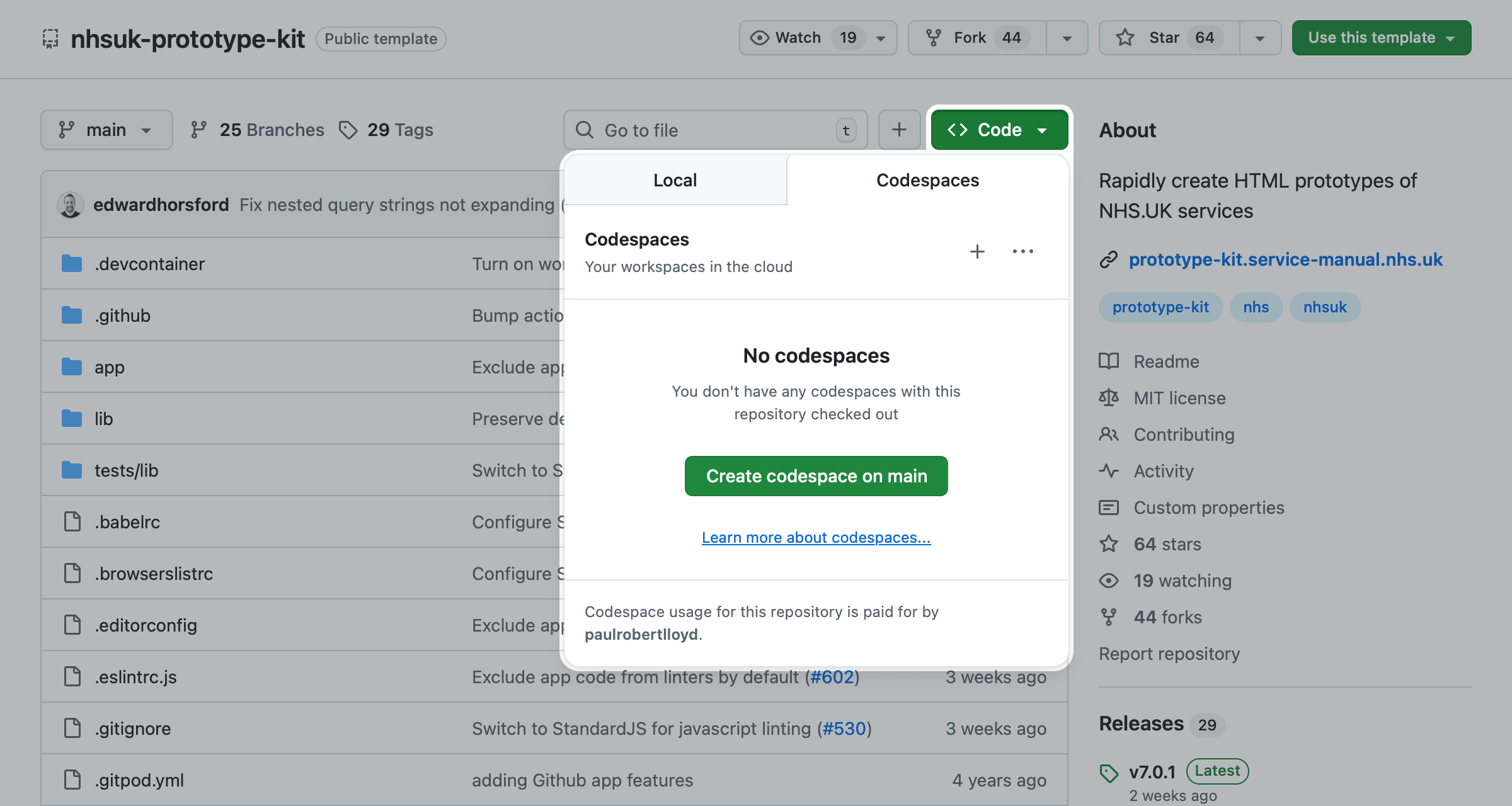
The Create codespace on main button will either be shown as a large button or a small plus symbol after the label your workspaces in the cloud.
2. Wait for the Codespace setup to finish
The Codespace will open in a new tab (or window) and begin the setup process.
You will see an interface building with a progress message showing that the space (known as a ‘container’) is being created or rebuilt.
This can take between 30 seconds and 5 minutes.
3. Check that it has worked
Once the Codespace has been created, you will then see the ‘terminal’ tab with commands being exectuted to start the prototype kit.
When the prototype has started it will open a preview window displaying the homepage of the prototype.
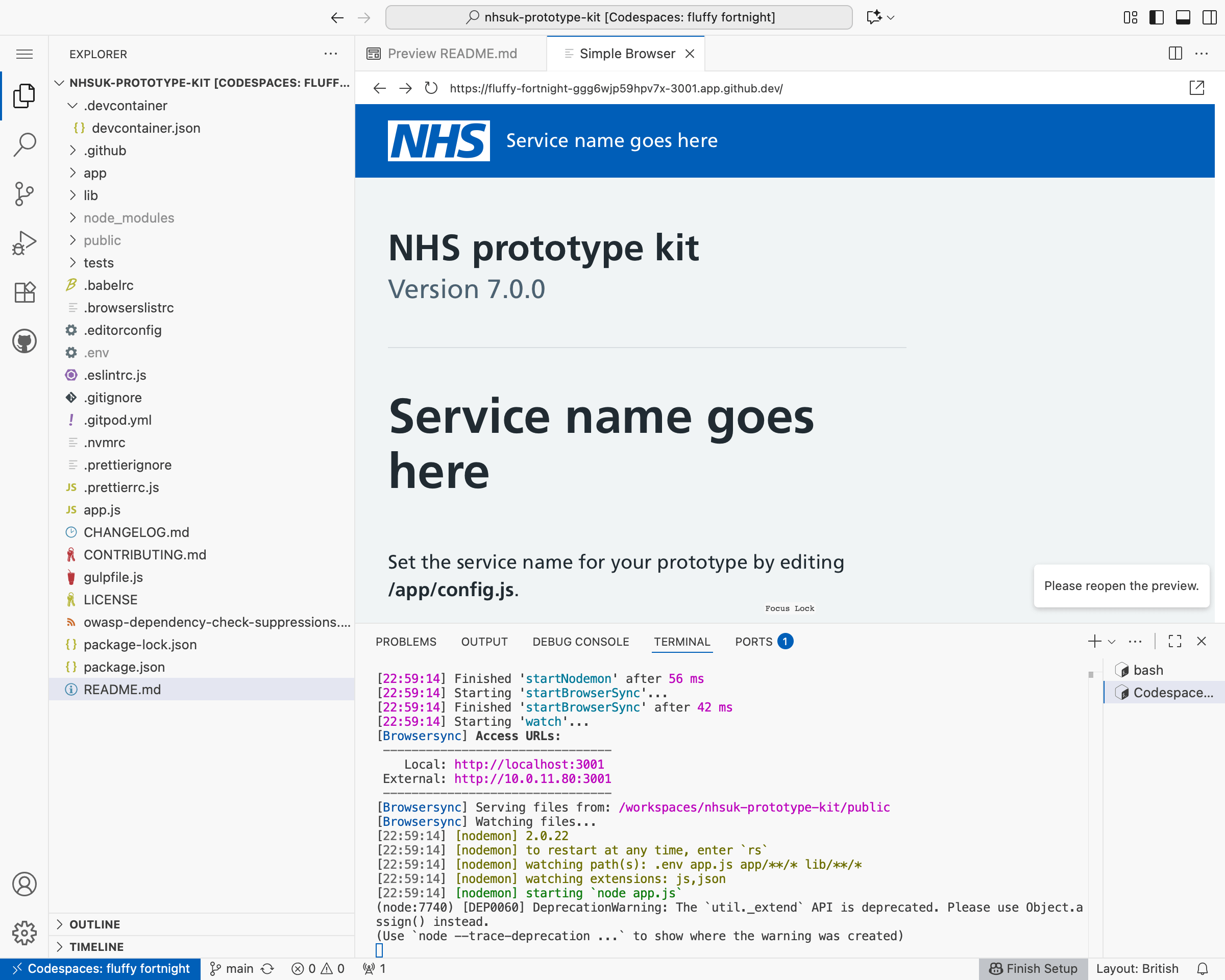
You now have a copy of the NHS prototype kit installed and running within a new GitHub Codespace.
This means you can create and edit prototypes entirely in your browser.